To submit a receipt, employees can use either the AI assistant or the classic method. Here are the steps to follow:
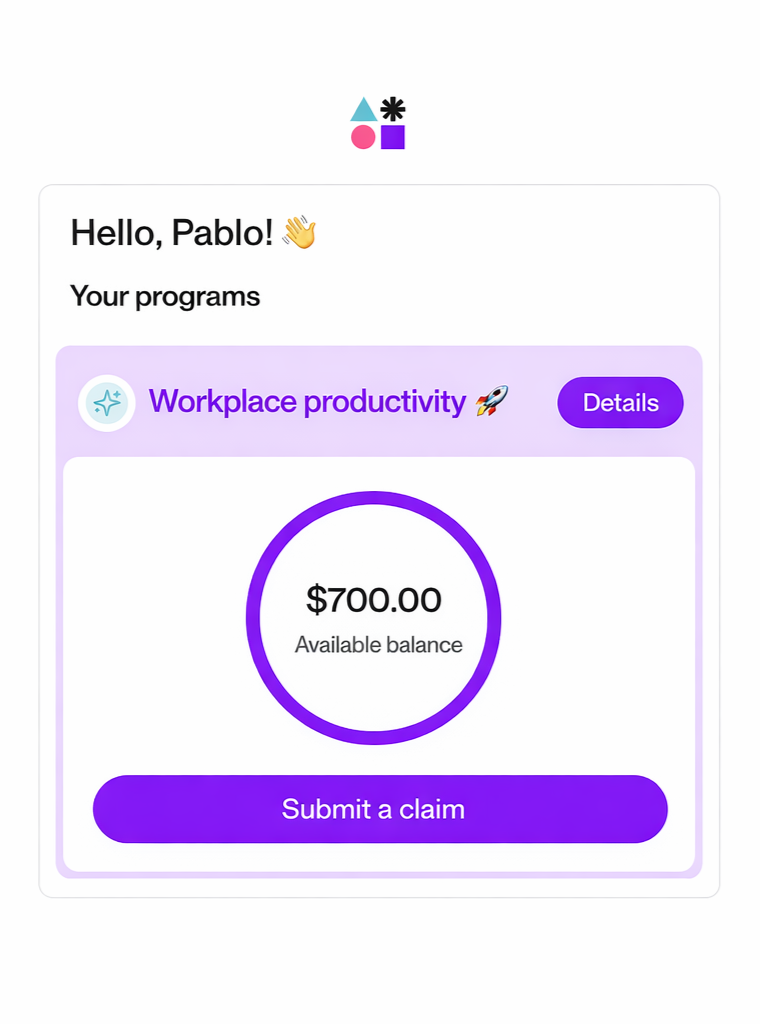
Start a claim submission in one of two ways:
Click the "Claim" button under the amount you wish to use.
Or click "Details," then "Submit a new claim" at the top of the page. See below:
To use the AI feature, simply drop the photo of the receipt and adjust any fields that were automatically filled in. Your receipt needs to contain:
The amount paid
The date of the transaction
The vendor and description of what was purchased
If the automatic analysis does not work correctly, you can also manually submit your receipt. To do so, click the blue text located under the image upload box (step 2).
Once the receipt has been submitted, the claim will appear in your profile.